Summary
✓Reviewed by Emma Thompson The stutter and low FPS in PC indie games is one of the most common problems among Filipino gamers using low-end laptops. Even great indie titles like Celeste, Hollow Knight, or Undertale can stutter without warning,...
Table of contents
- 1 Why Your Laptop Is Acting Up: The Main Causes of Stutter and Low FPS
- 2 Step 1: Diagnose First Using Monitoring Tools
- 2.1 How to Read Frame Time Data
- 3 Step 2: Fix Thermal Throttling — The Most Common Cause
- 4 Step 3: Update or Cleanly Reinstall GPU Drivers
- 4.1 Check GPU Selection for Each Game
- 5 Step 4: Optimize Windows Settings for Gaming
- 6 Step 5: Check Windows Updates — You Might Be Surprised
- 7 In-Game Settings: Specific Tweaks for Popular Indie Games
- 8 Comparison: Tested Fixes and Their Level of Impact
- 9 Additional Tips for Low-End Laptop Gaming
- 10 When Is It Time to Upgrade Hardware?
- 11 Frequently Asked Questions (FAQ)
- 11.1 Why do indie games lag even though they have low graphics requirements?
- 11.2 Should V-Sync be on or off to eliminate stutter?
- 11.3 Is it safe to disable Memory Integrity (Core Isolation) for gaming?
- 11.4 Does Xbox Game Bar help fix FPS?
The stutter and low FPS in PC indie games is one of the most common problems among Filipino gamers using low-end laptops. Even great indie titles like Celeste, Hollow Knight, or Undertale can stutter without warning, especially when the laptop has a shared GPU, only 8GB of RAM, and a limited thermal design. This guide will teach you how to fix stutter and low FPS in PC indie games on a low-end laptop using tested and practical steps, from diagnosis to the right settings, without needing to buy new hardware.
Why Your Laptop Is Acting Up: The Main Causes of Stutter and Low FPS
Before you start fixing things, you need to understand why the problem is happening. Stutter and low FPS are two different things: low average FPS means the hardware doesn’t have enough power to run the game, while stutter is a sudden spike in frame time that makes the game feel like it freezes for a moment even if the average FPS is high. According to Microsoft Q&A Support, overheating is the most common cause of sudden performance drops in gaming laptops, because when the CPU or GPU reaches its temperature limit, it automatically reduces its clock speed to protect itself — a process called thermal throttling.
Here are the main causes that anyone wanting to learn how to fix stutter and low FPS in PC indie games on a low-end laptop should check:
- Thermal throttling – the CPU/GPU reduces its own speed when it gets too hot
- Wrong GPU selection – the game is using integrated graphics instead of the dedicated GPU
- Outdated or corrupted drivers – NVIDIA, AMD, or Intel graphics drivers are not updated
- Too many background apps – Discord overlays, browser tabs, launcher updates, RGB software
- Wrong power plan – the laptop is on Balanced instead of High Performance
- Insufficient RAM or VRAM pressure – especially on shared GPUs that use system RAM as VRAM
- Stale shader cache – outdated shader data causing hitching at game startup
Step 1: Diagnose First Using Monitoring Tools
Proper diagnosis is the foundation of solving stutter and low FPS on a low-end laptop. Don’t just tweak settings without knowing what’s actually happening inside your PC. The most effective method is to use monitoring software like MSI Afterburner together with RivaTuner Statistics Server (RTSS), which displays real-time temperatures, CPU/GPU usage, clock speeds, RAM usage, and frame time while you play. Enable the on-screen display (OSD) to see data without creating an extra window.
If you see your CPU temperature reaching 95°C or higher, or your GPU temperature exceeding 85°C, thermal throttling is almost certainly the cause of the stutter. If the GPU usage is low (for example, only 30%) while stuttering occurs, the CPU may be the bottleneck, or the game may be using the wrong GPU. Also use the Windows built-in Task Manager (Ctrl+Shift+Esc) to check which background processes are consuming large amounts of CPU or RAM while you play.
How to Read Frame Time Data
Frame time is the most important metric for stutter, not average FPS. 60 FPS with a consistent 16ms frame time is smoother than 60 FPS with a fluctuating 8ms to 50ms frame time. When you see the frame time suddenly spiking even when average FPS is high, this indicates stutter that won’t show up in a simple FPS counter. MSI Afterburner and RTSS display a frame time graph that clearly shows these spikes.
Step 2: Fix Thermal Throttling — The Most Common Cause
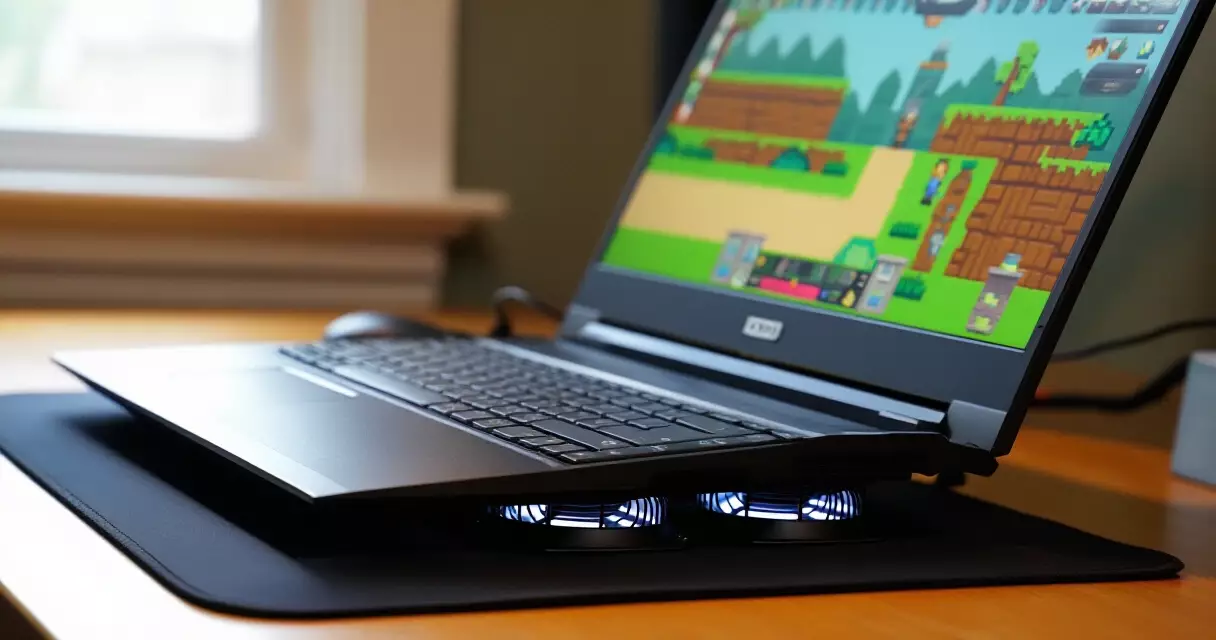
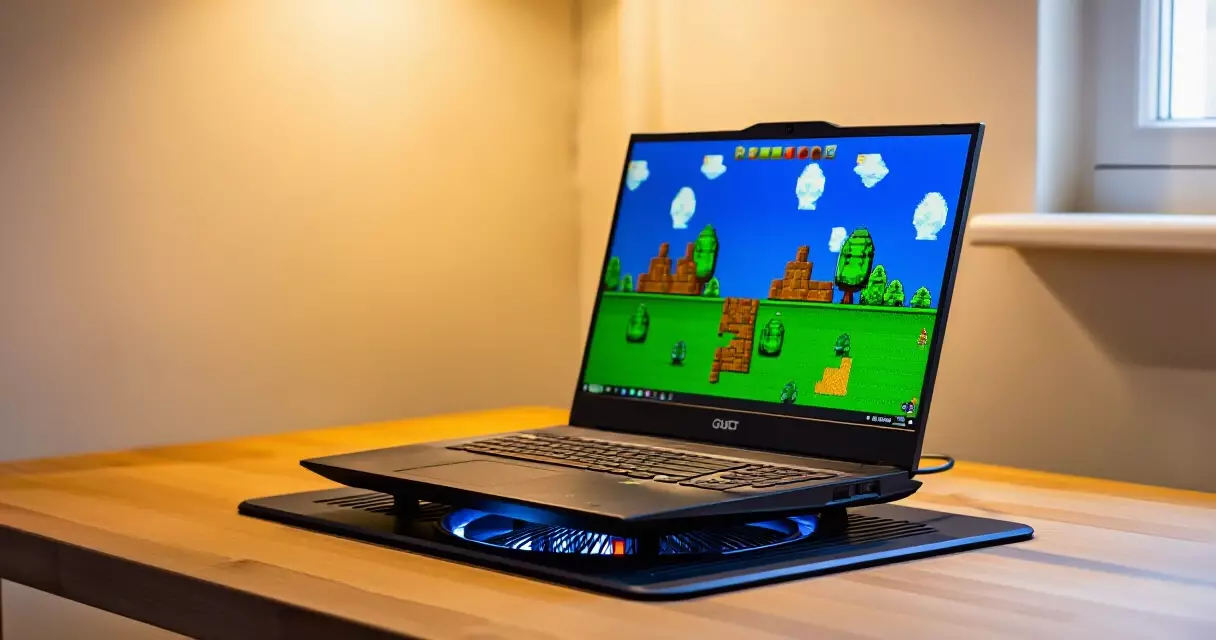
If thermal throttling was identified during diagnosis, here are the steps to resolve it. First, make sure the laptop is plugged into power while gaming. Low-end laptops typically reduce performance when on battery to conserve power. Second, make sure the laptop is not resting on a soft surface like a pillow or blanket, as this blocks the fan’s airflow. Use a hard flat surface, or better yet, a laptop cooling pad.
As a software-side solution, you can also use ThrottleStop (for Intel CPUs) to monitor and change the voltage and power limits of the processor, or AMD Ryzen Master for AMD-powered laptops. Undervolting the CPU reduces heat without changing performance, but it needs to be done carefully and with knowledge.
Step 3: Update or Cleanly Reinstall GPU Drivers
Outdated or corrupted GPU drivers are one of the main causes of stutter and frame time spikes in PC indie games. A simple “update” is not enough; sometimes a clean install is needed to remove all old and potentially corrupted driver files. For NVIDIA graphics cards, download the latest driver from the official NVIDIA website, and in the installation wizard, choose “Custom Installation” and check “Perform a clean installation.” For AMD, use DDU (Display Driver Uninstaller) in Safe Mode before installing a new driver to ensure no old files are left behind.
For laptops with Intel integrated graphics as the primary GPU, update the Intel Graphics Command Center from the Intel website or via Windows Update. Note that the driver included in Windows Update is not always the latest; it’s better to get it directly from the manufacturer’s website.
Check GPU Selection for Each Game
One of the most commonly overlooked causes of low FPS on a low-end laptop with two GPUs (integrated and discrete) is the game using the wrong GPU. When using NVIDIA, open the NVIDIA Control Panel, go to “Manage 3D Settings,” then “Program Settings,” and make sure your indie game is set to “High-performance NVIDIA processor.” For AMD, open AMD Radeon Software and do the same process under the “Graphics” settings.
Step 4: Optimize Windows Settings for Gaming
Many built-in Windows settings can contribute to stutter and low FPS, especially on low-end systems. Here are the settings to check and change to learn how to fix stutter and low FPS in PC indie games on a low-end laptop:
- Power Plan: Go to Control Panel → Power Options, and select “High Performance.” When your laptop is plugged in, this should be active while gaming.
- Game Mode: Go to Settings → Gaming → Game Mode, and make sure it is On. This reduces interference from background Windows processes while in-game.
- Hardware-Accelerated GPU Scheduling (HAGS): Go to Settings → System → Display → Graphics → Change default graphics settings, and toggle it. On some systems this helps; on others it causes more stutter, so try it and observe.
- Fullscreen Optimizations: Right-click the game’s .exe file → Properties → Compatibility, and check “Disable fullscreen optimizations.” This helps some indie games that stutter in borderless window mode.
- Background Apps: Close everything you don’t need: browser tabs, Discord overlay (can be disabled in Settings → Overlay without closing Discord), cloud sync apps, and RGB software.
In April 2026, the Microsoft Windows Experience Blog announced that Xbox Mode became available on all Windows 11 PC form factors, including laptops, desktops, and tablets. Xbox Mode provides a console-like gaming experience on Windows, automatically optimizing system resources for gaming — a useful feature for low-end laptop users.
“Proper diagnosis using monitoring tools makes the difference between a quick fix and endless tweaking with no results.”
Step 5: Check Windows Updates — You Might Be Surprised
The latest Windows update isn’t always helpful when it comes to gaming. In August 2026, according to reports from the Windows updates tracking community, the KB5121003 update for Windows 11 caused game crashes and other performance issues on some PCs. If your indie games suddenly started stuttering or crashing after a Windows update, this could be the reason.
To check this, go to Settings → Windows Update → Update History, and see if there was a recent update before the problem started. You can uninstall a specific update via Settings → Windows Update → Update History → Uninstall Updates. Be careful and make sure to back up your data before taking this step.
In-Game Settings: Specific Tweaks for Popular Indie Games
Beyond OS-level fixes, in-game settings optimization is also important for each indie title. Here is a table of common in-game settings to change for higher FPS and a smoother gaming experience on a low-end laptop:
| Setting | Recommended Value | Performance Impact |
|---|---|---|
| Resolution | 1280×720 (720p) | Large — the most impactful change |
| V-Sync | Off or use FPS cap | Changes input lag and stutter behavior |
| Shadow Quality | Low or Off | Large — heavy on GPU |
| Anti-Aliasing | Off or FXAA only | Moderate — FXAA is lighter |
| Texture Quality | Medium | Small — depends on VRAM |
| Post-Processing | Low or Off | Moderate — depth of field, bloom, etc. |
| Display Mode | Exclusive Fullscreen | Moderate — lower latency than windowed |
| FPS Limit | 30 or 60 (stable) | Reduces thermal load and stutter |
For specific games like Celeste, Stardew Valley, and Hades, changing the resolution to 720p and turning off V-Sync usually makes the biggest difference on a low-end laptop. Indie games made in the Unity engine (such as Hollow Knight and Cult of the Lamb) have a well-known history of stutter issues on Windows, and enabling “Force fullscreen exclusive” in graphics settings usually helps.
Comparison: Tested Fixes and Their Level of Impact
To make it easier to know where to start, here is a general comparison of fixes based on difficulty level and expected performance impact, based on reported experiences from the gaming community and recommendations from Microsoft Windows Developer for optimizing gaming on Windows 11:
| Fix | Difficulty Level | Expected Impact | Requires Hardware? |
|---|---|---|---|
| Close background apps | Easy | Moderate | No |
| Change power plan | Easy | Moderate to Large | No |
| Update or clean install GPU driver | Moderate | Moderate to Large | No |
| Change in-game graphics settings | Easy | Large | No |
| Fix GPU selection (NVIDIA Control Panel) | Moderate | Large (if wrong GPU is selected) | No |
| Thermal cleaning and cooling pad | Moderate | Large (if thermal throttling is present) | Minor (cooling pad) |
| Replace thermal paste | Hard | Large (for older laptops) | Yes (thermal paste) |
| Upgrade RAM to 16GB | Moderate | Large (for 8GB systems) | Yes (RAM) |
Additional Tips for Low-End Laptop Gaming
Beyond the main steps, there are additional ways to further improve the gaming experience on a low-end laptop:
- Clear temporary files: Press Win+R, type
%temp%, and delete all the files. This frees up a bit of storage space and reduces I/O bottleneck. - Defragment the HDD (if not an SSD): If your laptop uses an HDD, defragmenting it can reduce stuttering caused by slow data loading.
- Clear the shader cache: For NVIDIA, go to NVIDIA Control Panel → Manage 3D Settings → Shader Cache Size, and clear it. For Steam games, right-click the game → Properties → Local Files → Browse, then find and delete the shader cache folder.
- Use Razer Cortex or Xbox Game Bar’s performance features: These automatically close background processes before you play.
- Adjust virtual memory: If you only have 8GB of RAM, you can increase virtual memory (pagefile). Go to System Properties → Advanced → Performance Settings → Advanced → Virtual Memory, and set a custom size of 1.5× your RAM.
When Is It Time to Upgrade Hardware?
If you’ve tried all the software and settings optimizations and stutter and low FPS persist, it may be time to consider a hardware upgrade. The most cost-effective upgrades for a low-end laptop are the following, in recommended priority order:
- RAM upgrade from 8GB to 16GB — This is the biggest change for most low-end laptops with a shared GPU, because the additional RAM is also used as VRAM by the integrated graphics.
- HDD to SSD upgrade — Significantly reduces shader compilation stutter and speeds up game loading.
- Thermal paste replacement — For laptops 3 years or older, this is important to lower temperatures and eliminate thermal throttling.
“On a low-end laptop, properly diagnosing stutter saves you money: 80% of cases are fixed by settings and software — not new hardware.”
For those looking for a more detailed guide on setting up their PC for higher performance in indie games, you can check out our guide on PC setup for indie games on low-end specs.
Frequently Asked Questions (FAQ)
Why do indie games lag even though they have low graphics requirements?
The requirements of an indie game aren’t always truly low. Games made in Unity or Unreal Engine (even 2D ones) can have high CPU overhead. Beyond that, stutter is usually not caused by graphics but by CPU bottleneck, RAM pressure, or thermal throttling, which happens even in “light” games. Check temperatures and CPU usage using MSI Afterburner while playing to find the real cause.
Should V-Sync be on or off to eliminate stutter?
It depends on the type of stutter. If your FPS is consistently higher than your monitor’s refresh rate (e.g. 90 FPS on a 60Hz monitor), turning V-Sync on reduces screen tearing but may increase input lag. If your FPS fluctuates (such as 30–60), it’s better to use an FPS limiter (e.g. in NVIDIA Control Panel or within the game) set to a stable number like 30 FPS, rather than V-Sync.
Is it safe to disable Memory Integrity (Core Isolation) for gaming?
Memory Integrity is a Windows security feature that protects the system’s kernel memory. Disabling it may provide a small performance boost on some systems, but comes with a security tradeoff. On PCs used for work or browsing, permanently disabling it is not recommended. Only try it if you’re desperate and understand the risks; if the improvement is not significant, re-enable it right away.
Does Xbox Game Bar help fix FPS?
Xbox Game Bar (Win+G) itself does not directly fix FPS, but it provides performance monitoring features and quick access to Game Mode settings that can help optimize your session.