Summary
✓Reviewed by Emma Thompson If you play Valorant on an old or budget PC and constantly experience sudden frame drops, you are not alone. The question of how to fix FPS drops in Valorant on a low-end PC in 2026...
Table of contents
- 1 What Are the Minimum and Recommended Specs for Valorant in 2026?
- 2 How to Check Your Windows and System Configuration
- 2.1 How to Check CPU Compatibility (SSE 4.2 / AVX)
- 3 In-Game Settings That Fix FPS Drops on a Low-End PC
- 3.1 Most Important In-Game Settings for Low-End PCs
- 4 Windows Optimization for Higher FPS in Valorant
- 4.1 Windows Steps You Should Take
- 5 How to Fix FPS Drops Caused by Vanguard and Background Processes
- 6 Network-Related FPS Drops vs. True FPS Drops: The Difference
- 7 Valorant’s History and Low-End PC Support
- 8 When You Truly Need to Upgrade: Making the Right Decision
- 9 Frequently Asked Questions (FAQ)
- 9.1 Why do I still get FPS drops even though my PC meets the minimum specs?
- 9.2 Do I need 8 GB RAM for more stable FPS in Valorant?
- 9.3 Is it safe to add the Valorant folder as a Windows Defender exclusion?
- 9.4 Does uninstalling and reinstalling Valorant help with FPS drops?
- 9.5 What is the easiest way to find out whether my CPU or GPU is the bottleneck?
- 9.6 Are Windows 7 and Windows 8 still supported for Valorant in 2026?
- 10 Summary: Key Steps to Eliminate FPS Drops
- 11 References
If you play Valorant on an old or budget PC and constantly experience sudden frame drops, you are not alone. The question of how to fix FPS drops in Valorant on a low-end PC in 2026 is one of the most commonly searched topics by gamers this year, and the good news is: there are many solutions you can apply for free, right now. This article will guide you from a hardware check all the way to in-game settings so you can achieve the most stable FPS your PC can deliver.
What Are the Minimum and Recommended Specs for Valorant in 2026?
Before adjusting any settings, you first need to know whether your PC meets the game’s official hardware requirements. According to the playvalorant.com specs page updated in August 2026, Valorant has three performance target tiers.
| Category | CPU | GPU | RAM | Target FPS |
|---|---|---|---|---|
| Minimum | Intel Core 2 Duo E8400 / AMD Athlon 200GE | Intel HD 4000 / AMD Radeon R5 200 | 4 GB | 30 FPS |
| Recommended | Intel Core i3-4150 / AMD Ryzen 3 1200 | GeForce GT 730 / Radeon R7 240 | 4 GB | 60 FPS |
| High-End | Intel Core i5-9400F / AMD Ryzen 5 2600X | GTX 1050 Ti / Radeon R7 370 / Intel Arc A310 | 4 GB | 144 FPS+ |
Important to note: even the high-end tier only requires 4 GB RAM, but the CPU and GPU are the primary bottlenecks for FPS consistency. If your PC is at the minimum tier or below, you will need more aggressive optimization in your settings and Windows configuration.
How to Check Your Windows and System Configuration
One of the most overlooked causes of FPS drops in Valorant in 2026 is not hardware, but incorrect Windows configuration. According to the Riot Games support page, your system needs the following for the game to function properly:
- Windows 10 Build 19041 or newer, or Windows 11 64-bit
- DirectX 11 support — required by your GPU
- SSE 4.2 or AVX support on your CPU
- For Windows 11: UEFI Secure Boot and TPM 2.0 are required
To check whether your Windows version qualifies, press Windows key + R, type winver, and check the build number. If your Windows 10 is older than Build 19041, you need to update it before looking for other FPS drop solutions.
How to Check CPU Compatibility (SSE 4.2 / AVX)
You can use the free tool CPU-Z to see whether your processor supports SSE 4.2 or AVX. Open CPU-Z, go to the “CPU” tab, and look for the “Instructions” section. If you do not see SSE4.2 or AVX listed there, your CPU is not compatible and you will experience persistent performance issues in Valorant — this cannot be fixed by tweaking settings.
In-Game Settings That Fix FPS Drops on a Low-End PC
This is the most effective part of optimization for the majority of low-end PC users. Valorant has many graphics settings that can be adjusted to significantly boost FPS.
Most Important In-Game Settings for Low-End PCs
| Setting | Recommended Value (Low-End) | FPS Impact |
|---|---|---|
| Display Mode | Fullscreen | High — more direct GPU access |
| Resolution | 1280×720 or 1024×768 | High — fewer pixels to render |
| Material Quality | Low | Medium |
| Texture Quality | Low | Medium — saves VRAM |
| Detail Quality | Low | Medium |
| UI Quality | Low | Low |
| Vignette | Off | Low |
| VSync | Off | High — removes artificial FPS cap |
| Anti-Aliasing | None or MSAA x2 | Medium |
| Anisotropic Filtering | 1x | Low but helpful |
| Clarity | Off | Low |
| Bloom | Off | Low |
| Distortion | Off | Low |
| Shadows | Off or Low | High — shadows are CPU and GPU intensive |
| FPS Limit | Always: 60 or 120, Menu: 30 | Prevents thermal throttling |
The most critical setting of all is Display Mode. When set to Fullscreen, the GPU has direct access to the screen — this provides lower input lag and higher stable FPS compared to Windowed or Borderless Windowed mode. For anyone asking how to fix FPS drops in Valorant on a low-end PC, this is the first thing to change.
Windows Optimization for Higher FPS in Valorant
The settings within Windows itself also have a significant impact on Valorant’s performance, especially on low-end PCs with limited CPU and RAM resources.
Windows Steps You Should Take
- Enable the High Performance Power Plan. Go to Control Panel > Power Options and select “High Performance”. On Windows 11, find it under Settings > System > Power & sleep > Additional power settings. This gives your CPU and GPU higher clock speeds.
- Disable startup apps. Press Ctrl+Shift+Esc to open Task Manager, go to the “Startup” tab, and disable everything you do not need — Discord, Spotify, your browser, and so on. Every background app consumes RAM and CPU that Valorant needs.
- Set Valorant as high priority in Task Manager. While the game is running, open Task Manager, find VALORANT-Win64-Shipping.exe under the “Details” tab, right-click it, and select “Set Priority > High”.
- Update your GPU drivers. For NVIDIA, use GeForce Experience or visit the official NVIDIA site. For AMD, use AMD Software: Adrenalin Edition. Outdated drivers are a common cause of FPS inconsistency.
- Disable Xbox Game Bar and Game DVR. Go to Settings > Gaming > Xbox Game Bar and turn it off. Do the same for Game Mode — try toggling it on and off to see which state gives better FPS on your specific PC.
- Clean your PC of dust. Thermal throttling occurs when the CPU or GPU overheats — they automatically reduce clock speed to maintain safe temperatures. For low-end laptops and desktops, excessive heat is one of the most common causes of FPS drops that cannot be seen in settings.
For those who want to deepen their understanding of PC optimization for low-spec games, a guide covering PC setup for low-end specs discusses many similar techniques in detail.
A stable 60 FPS on a low-end PC is more valuable than a fluctuating 90 FPS — consistency is the key to proper aim and quick reactions in Valorant.
How to Fix FPS Drops Caused by Vanguard and Background Processes
Vanguard, Valorant’s anti-cheat system, runs as a kernel-level process. On some low-end systems, this can introduce performance overhead — especially if your PC has limited CPU resources.
- Check the Vanguard service. From Task Manager, see whether vgc.exe is consuming too much CPU or RAM while the game is running. If so, try a full PC restart before playing and close all browser tabs.
- Do not use third-party overlays while playing. Apps such as the Discord overlay, MSI Afterburner overlay, and even the NVIDIA GeForce Experience overlay consume resources. Disable them in each app’s settings.
- Check Windows Security settings. Windows Defender’s real-time protection may scan game files while the game is running, causing temporary FPS drops. You can add the Valorant folder as an exclusion under Windows Security > Virus & threat protection > Manage settings > Add or remove exclusions.
Network-Related FPS Drops vs. True FPS Drops: The Difference
Many gamers confuse a true FPS drop with a ping spike or network lag. It is important to distinguish between them because the solutions are different.
- FPS drop — the number in the top-right corner (the FPS counter) goes down. This is fixed by graphics settings and PC optimization.
- Ping spike / lag — FPS remains high but the game appears to teleport or stutter. This is a network problem — check your internet connection or try a wired connection instead of WiFi.
- Frame time inconsistency (1% and 0.1% lows) — even with a high average FPS, the feel is rough because some individual frames take much longer to render. This is usually a CPU or background process issue.
To determine whether your problem is a network issue or an FPS issue, enable performance stats inside Valorant: go to Settings > Video > Stats and enable FPS and Network Round Trip Time (ms). If both are good, you are fine. If ping is high but FPS is also low, you have two separate problems to solve.
Valorant’s History and Low-End PC Support
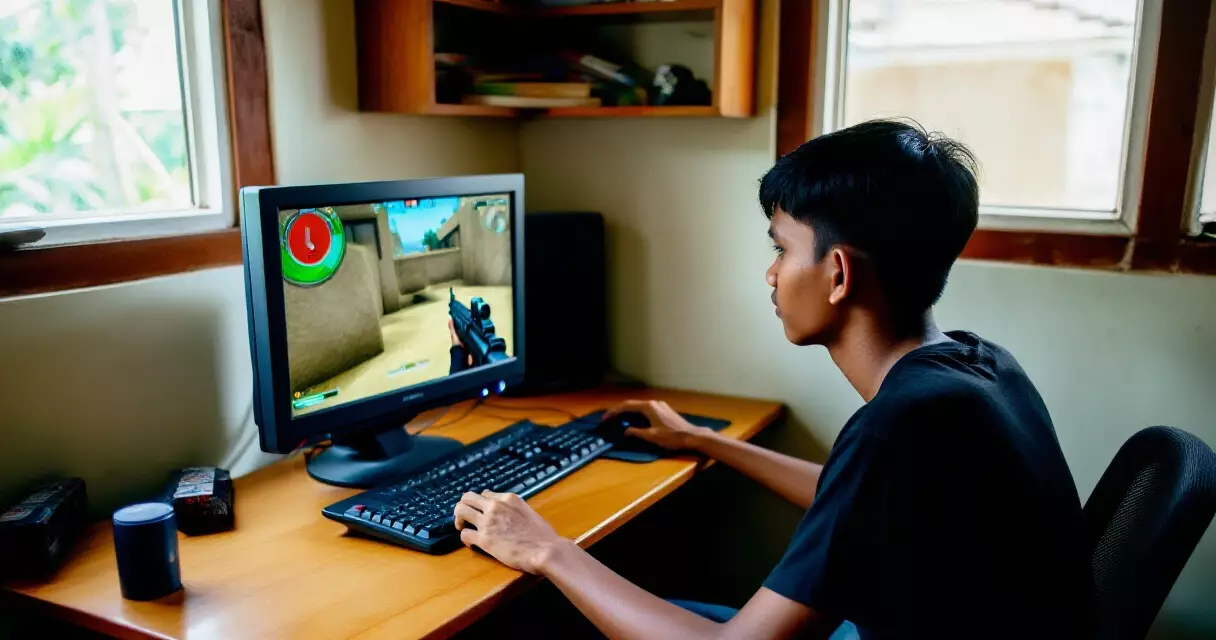
When Valorant launched in 2020, one of Riot Games’ core principles was to make the game accessible across a wide range of hardware. Since then, Riot has consistently maintained very low minimum specs. According to the official specs page updated in August 2026, the same Intel Core 2 Duo E8400 and 4 GB RAM are still sufficient for 30 FPS — hardware that was released back in 2008. This continued support for older hardware demonstrates Riot’s commitment to accessibility, but it requires more careful optimization on the player’s part.
Since Valorant launched in 2020, Riot Games has maintained the same extremely low minimum specs — proof that the game was designed for accessibility, not just high-end hardware.
When You Truly Need to Upgrade: Making the Right Decision
If you have already completed all the settings optimization and Windows tuning but FPS drops persist, it may be time to consider a hardware upgrade. Here are the signs that settings alone can no longer solve the problem:
- Your CPU is older than an Intel Core 2 Duo E8400 or AMD Athlon 200GE — meaning you do not meet Riot Games’ official minimum specs.
- Your GPU does not support DirectX 11 — you can check this in Device Manager or with the GPU-Z tool.
- Your CPU lacks SSE 4.2 or AVX support — identifiable via CPU-Z.
- You cannot achieve even 30 FPS at the lowest possible settings.
For those who want to upgrade but have a limited budget, upgrading RAM from 4 GB to 8 GB often provides a significant improvement in frame time consistency, especially if your Windows is using RAM for background processes. Upgrading the GPU to a GeForce GT 730, Radeon R7 240, or any newer entry-level discrete GPU will bring you into 60 FPS territory according to the tier structure on the Riot Games support page.
Frequently Asked Questions (FAQ)
Why do I still get FPS drops even though my PC meets the minimum specs?
Riot Games’ minimum specs are for 30 FPS only at the lowest settings. If your PC is at the minimum tier, you can still experience FPS drops when many background apps are running, when your hardware overheats, or when your Windows is not up to date. First try closing all background apps and setting the power plan to High Performance before investigating other causes.
Do I need 8 GB RAM for more stable FPS in Valorant?
According to Riot Games’ official specs, only 4 GB RAM is needed even for the high-end 144 FPS tier. However, based on the experience of many players, upgrading to 8 GB provides more stable frame times because Windows itself uses RAM for background processes. If your PC only has 4 GB and RAM usage in Task Manager is frequently high, upgrading will help.
Is it safe to add the Valorant folder as a Windows Defender exclusion?
Yes, it is safe for Valorant because the game uses its own Vanguard anti-cheat system. Windows Defender’s real-time scanning can scan game files while the game is running, causing temporary FPS drops. Add the full Valorant installation folder (usually located at C:Riot GamesVALORANT) as an exclusion. Make sure you do not disable Windows Defender entirely for your whole system.
Does uninstalling and reinstalling Valorant help with FPS drops?
In most cases, this is not the solution for FPS drops unless there are corrupted game files. Optimizing settings and Windows is more effective before attempting a reinstall. If you still want to try a reinstall, use the built-in “Repair” option in the Riot Client before doing a full uninstall and reinstall — it is faster and nearly as effective.
What is the easiest way to find out whether my CPU or GPU is the bottleneck?
While Valorant is running, open Task Manager and check CPU and GPU usage under the “Performance” tab. If the CPU is consistently at 90–100% but the GPU is at 50% or lower, you have a CPU bottleneck. If the GPU is high but the CPU is low, it is a GPU bottleneck. For a CPU bottleneck on low-end PCs, lowering the resolution typically helps more than lowering graphics quality settings.
Are Windows 7 and Windows 8 still supported for Valorant in 2026?
No. According to Riot Games’ current specs updated in 2026, Windows 10 Build 19041 or newer, or Windows 11 64-bit, is required. Windows 7, 8, and 8.1 are no longer supported. If you are still using an older Windows version and experiencing FPS issues, upgrading to Windows 10 (still free in many cases) is the first step.
Summary: Key Steps to Eliminate FPS Drops
The solutions for how to fix FPS drops in Valorant on a low-end PC are clear and well-tested. The key is to follow the correct order: hardware check first, then Windows configuration, and finally in-game settings. For gamers working with limited hardware, consistent 60 FPS is still achievable on many low-end setups through proper optimization. For broader context on the competitive gaming scene, check out the guide on joining esports tournaments for beginners.
- Check whether your PC meets Riot Games’ minimum specs (CPU, GPU, RAM, OS)
- Update Windows to Build 19041 or newer; ensure DirectX 11 support is enabled
- Set in-game settings to the lowest: Fullscreen, 720p, all quality settings on Low, VSync off, Shadows off
- Enable the High Performance power plan and disable startup apps in Task Manager
- Update GPU drivers and disable all in-game overlays
- Add the Valorant folder as a Windows Defender exclusion to avoid real-time scan interference
- For laptops: use a cooling pad and ensure proper airflow
References
- Valorant Specs — playvalorant.com (Riot Games) — retrieved August 27, 2026
- Minimum and Recommended PC Specs — Riot Games Support — retrieved August 27, 2026