Summary
How to fix stutter and FPS drops in PC indie games? This is one of the most common questions among Filipino gamers, especially those playing Hollow Knight, Hades 2, Stardew Valley, Celeste, Dead Cells, or Cult of the Lamb on...
Table of contents
- 1 Why PC Indie Games Experience Stutter: The Real Reason
- 2 First Step: Measure Frame Time, Not Just FPS
- 3 How to Fix Shader Compilation Stutter in PC Indie Games
- 3.1 Clear and Resize the Shader Cache
- 3.2 Use the Game’s Pre-Compilation Option If Available
- 4 Power Plan and Windows Settings: Quick Fixes for Filipino Setup
- 5 RAM Speed and XMP/EXPO: Major Impact on Low-End Filipino PC Setup
- 6 Thermal Throttling: The Hidden Cause of Stutter After 15-20 Minutes
- 7 SSD vs HDD: Why Storage Matters to Reduce Stutter in Indie Games
- 8 Frame Cap Using RTSS: How to Fix Stuttery Frame Pacing
- 9 Summary of Fixes: Comparison Table of Solutions
- 10 For the Most Affected Indie Games: Specific Tips
- 11 Frequently Asked Questions (FAQ)
- 11.1 Why does my game stutter even with high FPS?
- 11.2 Does disabling Memory Integrity (VBS) in Windows help?
- 11.3 Do I need to buy a new GPU to eliminate stutter in indie games?
- 11.4 Does installing the game on an SSD instead of an HDD help?
- 11.5 How do I know if thermal throttling is causing my stutter?
- 11.6 What is the correct frame cap using RTSS?
- 12 Summary and Key Steps
- 13 References
How to fix stutter and FPS drops in PC indie games? This is one of the most common questions among Filipino gamers, especially those playing Hollow Knight, Hades 2, Stardew Valley, Celeste, Dead Cells, or Cult of the Lamb on low-end or mid-range PC setups. Even if the FPS counter shows a high number, you can still feel the game stuttering — and this is because the real issue is not just the average FPS but the frame time, or how consistent each frame is delivered.
Why PC Indie Games Experience Stutter: The Real Reason
According to the guide by Wegs Tweaks (July 2026), the biggest mistake gamers make is looking only at the FPS counter and not at the frame time graph. A high average FPS does not guarantee smooth gameplay — a high frame time spike is enough for the eyes to feel the stutter, even if the average is 60 FPS or higher.
The main causes of stutter in PC indie games include:
- Shader compilation stutter — this occurs when the game compiles shaders for the first time an effect appears, particularly common in titles using Unreal Engine.
- CPU bottleneck — when the processor cannot keep up with the game’s demands, it results in uneven frame delivery.
- VRAM or RAM limits — when memory is full, the game starts streaming from slower storage, causing hitching.
- Thermal throttling — when the CPU or GPU reaches its temperature limit, it downclocks to cool down, causing an instant FPS drop.
- Storage bottleneck — especially in games that load assets while playing (open-world scenes, new areas), a slow HDD is one of the biggest causes of stutter.
- Background overlays and processes — Discord overlay, GeForce Experience, Xbox Game Bar, and other background apps take up CPU scheduling time.
- Incorrect or inactive power plan — Windows’ aggressive power-saving settings downclock the CPU and GPU at the wrong moment.
First Step: Measure Frame Time, Not Just FPS
Before you make any fixes, you first need to know where the problem really comes from. The correct way is to install MSI Afterburner with RivaTuner Statistics Server (RTSS), or CapFrameX, and enable the frame time graph on the on-screen display. According to Switchblade Gaming (April 2026), the metrics you should watch while playing are GPU usage (%), CPU usage per core, GPU and CPU temperature, VRAM usage, and the frame time graph itself.
When the line on the frame time graph is flat, the game is running smoothly. When there is a high spike, that’s where the stutter is. The spike pattern will give you a clue where the bottleneck is: if GPU usage rises to 99% and then drops, you’re GPU-limited; if a CPU core goes to 100%, you’re CPU-limited; if the temperature rises before stuttering, thermal throttling is the issue.
How to Fix Shader Compilation Stutter in PC Indie Games
Shader compilation stutter is one of the most frustrating types of stutter because it happens the first time you play and sometimes after a driver update or cache wipe. It is usually felt as a short freeze whenever entering a new area or applying a new effect on the screen.
Clear and Resize the Shader Cache
According to Manbolo (August 2026), the recommendation is to set the shader cache size to 10 GB or higher in the GPU control panel — for NVIDIA, this is in the NVIDIA Control Panel under Manage 3D Settings, and for AMD, it is in Radeon Software. Then clear the old shader cache and let it rebuild in the next game session.
Use the Game’s Pre-Compilation Option If Available
Many indie games now — including Hades 2 and other Unreal Engine titles — have an option to pre-compile shaders before starting the game. Use it. It takes longer to load initially, but the in-game experience is smoother. If there is no built-in option, your first playthrough will be more stuttery as the engine compiles shaders; it will be smoother in the next session.
Power Plan and Windows Settings: Quick Fixes for Filipino Setup
One of the quickest and most effective fixes often forgotten by gamers is the Windows power plan. According to the same recommendation from Hone Blog (July 2025) and other optimization guides, the High Performance power plan prevents Windows from downclocking the CPU and GPU at the wrong moment during gameplay. To change it, go to Control Panel, select Power Options, and choose High Performance.
For those using laptops — common among Filipino gamers — this is even more important because the default Balanced or Power Saver plan aggressively downclocks the CPU when Windows doesn’t see the “need” for full performance, causing stutter especially during critical moments in the game.
Additionally, the following Windows settings are recommended by Manbolo (August 2026):
- Disable the Xbox Game Bar (Settings > Gaming > Xbox Game Bar).
- Disable the Discord overlay, GeForce Experience overlay, and Steam overlay for the affected game.
- Update GPU drivers directly from NVIDIA, AMD, or Intel — do not use third-party driver updaters.
- Check Virtual Memory (pagefile): go to System Properties > Advanced > Performance Settings > Advanced, and set the custom pagefile size on the SSD if possible.
RAM Speed and XMP/EXPO: Major Impact on Low-End Filipino PC Setup
One of the most underrated fixes for stutter, especially for Filipino gamers using budget PCs or laptops, is the correct RAM speed. If you install RAM with a rated speed of 3200 MHz or 3600 MHz but do not enable XMP (for Intel) or EXPO (for AMD) in the BIOS, it registers only at the default JEDEC speed, usually 2133 MHz or 2400 MHz — which is slower and causes more CPU-side frame time spikes.
According to optimization guides from Switchblade Gaming (April 2026), enabling XMP/EXPO is one of the most effective steps for CPU-bottlenecked systems, as faster RAM reduces latency and improves frame delivery consistency. To enable it, restart the PC, enter the BIOS (usually F2 or Delete key at startup), and find the XMP or EXPO profile.
Thermal Throttling: The Hidden Cause of Stutter After 15-20 Minutes
If your stutter starts after 15 to 20 minutes of gameplay and not at the beginning of the session, there is a high chance that thermal throttling is the problem. This happens when the CPU or GPU reaches its thermal limit and downclocks to protect itself from excessive heat. The result is an instant and often repeated FPS drop.
The solution here is not always hardware replacement. Try the following first:
- Clean the fans and heatsink of your PC or laptop from dust — this is the most common reason for poor thermal performance in older setups.
- Monitor the temperature using HWiNFO or MSI Afterburner. If the CPU reaches 95°C or higher, it’s thermal throttling.
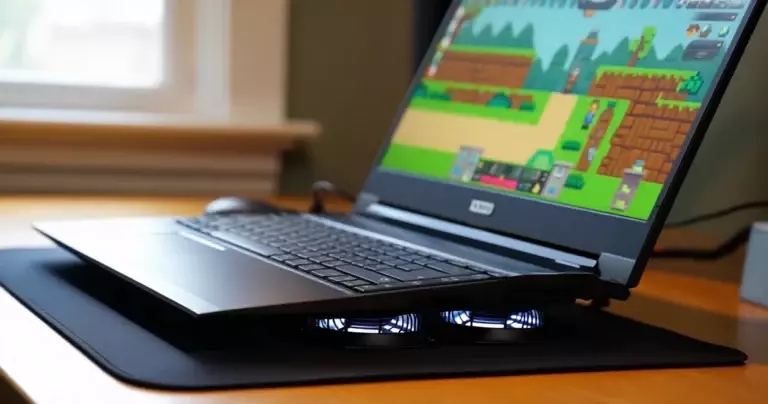
- For laptops, use a laptop cooling pad and ensure it is not placed on a soft surface (like a bed or pillow) that blocks airflow.
- If the PC is old, consider replacing the thermal paste on the CPU and GPU cooler.
SSD vs HDD: Why Storage Matters to Reduce Stutter in Indie Games
Many Filipino gamers still have an old HDD as their main drive because it’s cheaper. But for indie games that load assets while playing — like open-world scenes in Hollow Knight or asset-heavy areas in Cult of the Lamb — a slow HDD is one of the most direct causes of in-game stutter and hitching.
According to the recommendation of Hone Blog (July 2025), installing the game on an SSD (even a SATA SSD) is one of the most effective steps to reduce texture streaming stutter. Even the cheapest SATA SSD is 3 to 5 times faster than a typical HDD, which is enough to eliminate most storage-related stutter.
Frame Cap Using RTSS: How to Fix Stuttery Frame Pacing
One of the lesser-known causes of stutter is poor frame pacing — even if the average FPS is correct, the frames are not delivered evenly. The solution here is to set a frame cap using RivaTuner Statistics Server (RTSS), which is part of the MSI Afterburner installation.
The correct frame cap is the monitor’s refresh rate minus 3 to 5 FPS. For example, if your monitor is 60 Hz, set the frame cap to 55 or 57 FPS. If 144 Hz, set it to 139 or 141 FPS. The recommendation from Wegs Tweaks (July 2026) shows that running at a frame cap lower than the refresh rate prevents the game from hitting the ceiling and creating uneven frame pacing.
Summary of Fixes: Comparison Table of Solutions
| Fix | Cause Fixed | Difficulty | Effect |
|---|---|---|---|
| Enable XMP/EXPO in BIOS | CPU bottleneck, slow RAM | Easy | High |
| High Performance power plan | CPU/GPU downclocking | Easy | High |
| Clear and resize shader cache | Shader compilation stutter | Easy | Moderate-High |
| Disable overlays | CPU scheduling overhead | Easy | Moderate |
| Frame cap via RTSS (refresh rate – 3-5) | Frame pacing issues | Easy | Moderate |
| Install game on SSD | Asset streaming stutter | Moderate | High |
| Clean thermal system | Thermal throttling | Moderate | High (if thermal is the cause) |
| Custom pagefile on SSD | Memory pressure hitching | Moderate | Moderate |
For the Most Affected Indie Games: Specific Tips
Not all indie games stutter for the same reason. Here are specific tips based on known titles:
| Indie Game | Common Cause of Stutter | Specific Solution |
|---|---|---|
| Hades 2 | Shader compilation (Unreal Engine) in new rooms | Allow shader cache to build in the first session; clear and rebuild after a major update |
| Hollow Knight | Low VRAM, poor pagefile | Run on SSD; set custom pagefile; lower resolution if VRAM is very low |
| Stardew Valley | Many installed mods, slow CPU single-core | Reduce mods; set process priority to High using Task Manager |
| Celeste | Generally no stutter but affected by overlays | Disable all overlays; verify game files on Steam |
| Cult of the Lamb | Asset streaming in new areas | Install on SSD; ensure thermal system is clean |
| Dead Cells | CPU-intensive logic with many enemies | Set process priority to High; close all background apps |
“High FPS is not a guarantee of smooth gameplay — a flat frame time graph is the true measure of smoothness.”
Frequently Asked Questions (FAQ)
Why does my game stutter even with high FPS?
The average FPS hides frame time spikes. Even if your average is 70 FPS, if there are frames that take 100ms to deliver, you will feel it as stutter. Use MSI Afterburner or CapFrameX to see the frame time graph and identify the real problem.
Does disabling Memory Integrity (VBS) in Windows help?
According to optimization guides, disabling Memory Integrity or Virtualization-Based Security (VBS) in Windows Security settings can provide a slight performance improvement on some systems, but the effect is not consistent and depends on the hardware. For those concerned about security, it’s better to try other fixes first before disabling this security feature.
Do I need to buy a new GPU to eliminate stutter in indie games?
Not immediately. Most stutter in PC indie games can be fixed through software and settings fixes — power plan, shader cache, overlay management, XMP/EXPO, and frame cap. Before upgrading hardware, try all the tips in this article. If after all that it still stutters, then consider a hardware upgrade.
Does installing the game on an SSD instead of an HDD help?
Yes, especially for indie games that load assets while playing. A SATA SSD is sufficient — you don’t need a more expensive NVMe SSD to eliminate storage-related stutter. The cheapest SATA SSD provides a significant improvement over an HDD for this type of stutter.
How do I know if thermal throttling is causing my stutter?
If your stutter starts after 15 to 20 minutes of gameplay and not at the beginning, there is a high chance it’s thermal throttling. Monitor the temperature using HWiNFO or MSI Afterburner — if the CPU reaches 95°C or the GPU reaches 83-87°C or higher, it’s thermal throttling. The solution is to clean dust from the fans and heatsink, and possibly replace the thermal paste.
What is the correct frame cap using RTSS?
The recommendation is the monitor’s refresh rate minus 3 to 5 FPS. For a 60 Hz monitor, set it to 55-57 FPS. For a 144 Hz monitor, set it to 139-141 FPS. Setting a cap lower than the refresh rate prevents the game from hitting the ceiling and creating frame pacing issues.
“For Filipino gamers on low-end setups, the most effective first step is enabling XMP/EXPO in the BIOS and changing the power plan to High Performance — both are free and will make a significant difference.”
Summary and Key Steps
If you’re asking how to fix stutter and FPS drops in PC indie games, here is a shortened checklist you should follow before upgrading hardware:
- Install MSI Afterburner + RTSS and enable the frame time graph to diagnose the real problem.
- Change the power plan to High Performance in Control Panel.
- Disable the Xbox Game Bar, Discord overlay, GeForce Experience overlay, and Steam overlay for the affected game.
- Enable XMP (Intel) or EXPO (AMD) in the BIOS to run RAM at rated speed.
- Clear the shader cache in the GPU control panel and set the cache size to 10 GB or higher.
- Set a frame cap in RTSS: refresh rate minus 3-5 FPS.
- Install the game on an SSD — even just a SATA SSD.
- Check temperatures using HWiNFO; if throttling, clean the fans and heatsink.
- Set a custom pagefile size on the SSD in System Properties.
- For games with pre-shader compilation options (Hades 2, other Unreal titles), use it before starting the session.
For a deeper discussion of PC gaming performance in the Philippines, also read our guide on misconceptions about PC game requirements and how to evaluate new PC indie games in our review of REPLACED.
References
- How to Fix Stuttering & FPS Drops on PC — Wegs Tweaks — accessed on August 9, 2026
- <a href="https://www.manbolo.com/how-to-fix-frame-drops-and-stuttering-in-pc-games/" target="_blank" rel="noo