Summary
If you're wondering how to optimize your game even when using an old laptop with Intel HD Graphics or just 4 GB RAM, here is the deep dive into the best graphics settings for Valorant PC low-end laptop that you...
Table of contents
- 1 Why Do the Right Graphics Settings Matter for a Low-End Laptop?
- 2 Official Valorant System Requirements for the Lowest Specs
- 3 Deep Dive into the Best Graphics Settings for Valorant — Complete and Detailed
- 3.1 General Video Settings
- 3.2 Graphics Quality Settings
- 4 The Role of Multithreaded Rendering — The Setting You Must Not Forget
- 5 Resolution and Display Mode — The Foundation of FPS Boost
- 6 Additional Tips for Low-End Laptops — Beyond In-Game Settings
- 7 Performance Comparison: Before and After Optimization
- 8 Windows 11 and Valorant: What Filipino Gamers Need to Know in 2026
- 9 Frequently Asked Questions from Filipino Gamers About Valorant Settings
- 9.1 Can 4 GB RAM handle Valorant?
- 9.2 What resolution is best for a low-end laptop?
- 9.3 Should Multithreaded Rendering be turned on?
- 9.4 How do you reduce lag in Valorant with a slow internet connection?
- 9.5 Is Fullscreen better than Windowed or Borderless?
- 9.6 Does updating GPU drivers affect FPS?
- 10 Summary and Key Takeaways
- 11 References
If you’re wondering how to optimize your game even when using an old laptop with Intel HD Graphics or just 4 GB RAM, here is the deep dive into the best graphics settings for Valorant PC low-end laptop that you need. According to the official specs page of Riot Games, Valorant can still run on Intel HD 4000 and i3-540 — meaning many Filipino gamers with old laptops still have a chance to play comfortably.
Why Do the Right Graphics Settings Matter for a Low-End Laptop?
For most Filipino gamers using budget or second-hand laptops, the biggest obstacle in Valorant isn’t skill but low FPS and recurring lag. Valorant is one of those shooters that is CPU-sensitive — meaning the processor has a greater impact than the GPU when it comes to performance. Because of this, adjusting graphics settings is one of the most effective ways to speed up the game even without a hardware upgrade budget.
According to the official specs page of playvalorant.com, Riot’s minimum target for Valorant is just 30 FPS — and this is achievable with an Intel HD 4000 and i3-540 CPU. However, to play comfortably (60 FPS and above), you need the right settings.
Official Valorant System Requirements for the Lowest Specs
Before we get into the settings, let’s first find out whether your laptop can actually run Valorant. Based on the updated specs page of Riot Games last updated in August 2026, here are the three performance tiers:
| Tier | Target FPS | CPU | GPU | RAM |
|---|---|---|---|---|
| Minimum | 30 FPS | Intel Core i3-540 / AMD Athlon 200GE | Intel HD 4000 / AMD Radeon R5 220 | 4 GB |
| Recommended | 60 FPS | Intel Core i3-4150 / AMD Ryzen 3 1200 | GeForce GT 730 / Radeon R7 240 | 4 GB |
| High-end | 144+ FPS | Intel i5-9400F / Ryzen 5 2600X | GTX 1050 Ti / Radeon R7 370 / Intel Arc A310 | 4 GB |
Important to note: according to the official Valorant specs page, Valorant requires SSE 4.2 or AVX support on the CPU, DirectX 11, and for Windows 11, TPM 2.0 and UEFI Secure Boot are also required.
Deep Dive into the Best Graphics Settings for Valorant — Complete and Detailed
This is the heart of our deep dive into the best graphics settings for Valorant PC low-end laptop. Open Valorant, go to Settings > Video, and follow these recommendations based on performance guides published in 2025–2026:
General Video Settings
- Display Mode: Fullscreen — this is the fastest mode because it has direct GPU access without going through the window manager.
- Resolution: 1280×720 (or 1024×768 if you need even more FPS). The lower the resolution, the easier it is for integrated graphics.
- Frame Rate Limit: Set to “Always” and choose 60 or 120 depending on your monitor — don’t let FPS run unlimited as it will unnecessarily heat up your laptop.
- VSync: Off — this adds input lag, which affects reaction time in the game.
Graphics Quality Settings
- Multithreaded Rendering: On — this is one of the most important settings. It allows all CPU cores to be used for rendering, which is a big help for multi-core low-end processors.
- Material Quality: Low
- Texture Quality: Low
- Detail Quality: Low
- UI Quality: Low
- Vignette: Off
- Anti-Aliasing: None — this has a big impact on FPS; turn it off for all low-end setups.
- Anisotropic Filtering: 1x — higher values slow down texture rendering.
- Improve Clarity: Off at first; try enabling it once FPS is stable.
- Bloom: Off
- Distortion: Off
- Cast Shadows: Off — this is one of the biggest consumers of GPU resources.
| Setting | Recommendation for Low-End | Why? |
|---|---|---|
| Display Mode | Fullscreen | Direct GPU access, faster performance |
| Resolution | 1280×720 | Big relief for integrated GPU |
| VSync | Off | Adds input lag |
| Multithreaded Rendering | On | Uses all CPU cores |
| Material/Texture/Detail Quality | Low | Reduces GPU and VRAM load |
| Anti-Aliasing | None | Major FPS eater when enabled |
| Anisotropic Filtering | 1x | Minimum texture processing |
| Cast Shadows | Off | One of the biggest GPU drains |
The Role of Multithreaded Rendering — The Setting You Must Not Forget
Among all settings in Valorant, Multithreaded Rendering has the highest impact on low-end laptops. Because Valorant is a CPU-sensitive game according to performance analyses published on tech sites in 2025–2026, enabling Multithreaded Rendering provides a significant FPS boost on multi-core processors even with a low-end GPU.
“Valorant is designed for a wider audience — even those with old laptops can play, as long as you know how to optimize the settings.”
This setting allows the game engine to distribute rendering tasks across multiple CPU threads simultaneously. For laptops with 4 or more cores (for example, an Intel Core i5-8250U found in many budget laptops from 2017 onwards), this is essential to maximize every core and not waste computing power.
Resolution and Display Mode — The Foundation of FPS Boost
For LaroHub users with integrated graphics (Intel UHD 620, Intel HD 4000, or similar), resolution is the single biggest variable you can control. Every reduction in resolution decreases the number of pixels the GPU needs to render per frame.
For example: changing from 1920×1080 (Full HD) to 1280×720 reduces the pixel count by almost 56%. This means, theoretically, your GPU will render roughly twice as fast. For integrated graphics that use shared system memory (shared RAM), the effect is even more significant.
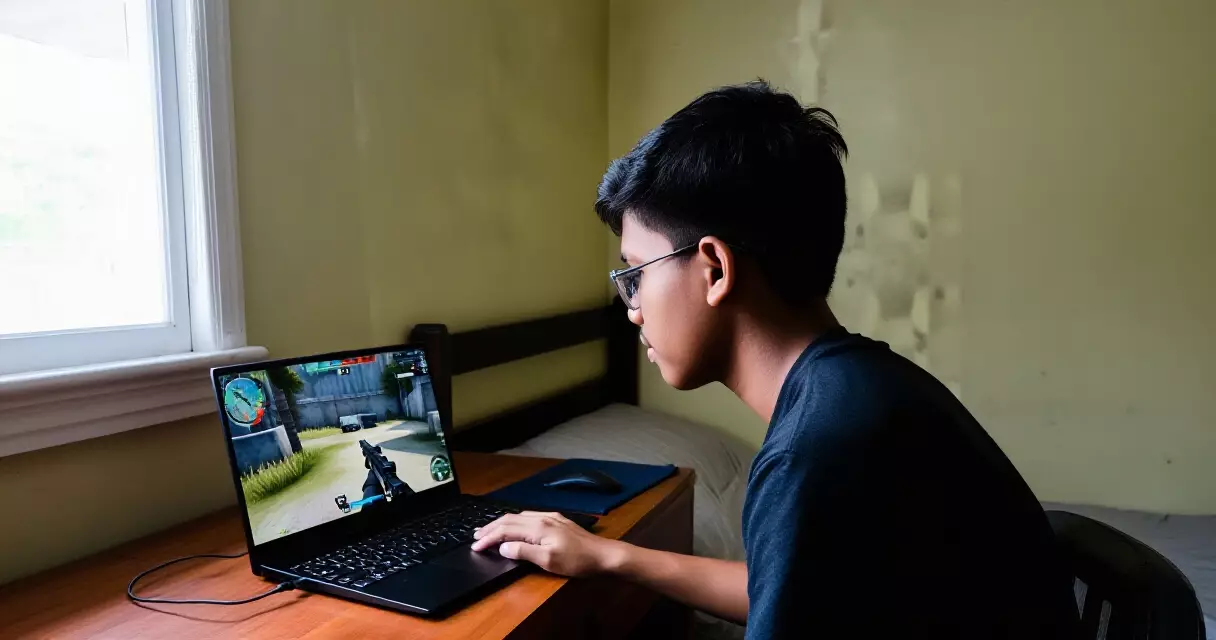
Additional Tips for Low-End Laptops — Beyond In-Game Settings
In-game settings are just one part of the puzzle. For the highest possible FPS in Valorant even on a low-end laptop, you also need to take the following steps outside of the game:
- Close all background apps: Discord, browsers (Chrome is known to be a RAM and CPU hog), Spotify, and others before launching Valorant.
- Update your GPU drivers: For Intel HD/UHD graphics, download the latest Intel Graphics Driver from the official Intel site. For AMD integrated graphics, use AMD Software: Adrenalin Edition.
- High Performance Power Plan: Go to Windows Settings > Power & sleep > Additional power settings, and select “High performance.” Many laptops default to Balanced mode, which reduces CPU speed to save battery.
- Disable Game Bar and Xbox overlays: Windows Settings > Gaming > Xbox Game Bar > turn off. These consume CPU resources even when you don’t realize they’re running.
- Clean up temporary files: Use Disk Cleanup or type “%temp%” in the Run dialog and delete old files. Full and slow storage affects loading times and sometimes FPS.
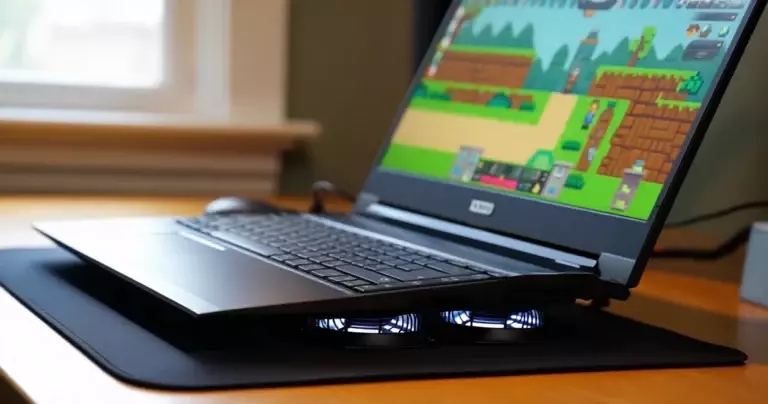
- Keep your laptop cool: Overheating causes thermal throttling — meaning the CPU lowers its own clock speed to prevent excessive heat. Use the laptop on a flat surface and, if possible, use a laptop cooling pad.
Performance Comparison: Before and After Optimization
To give a clearer idea of how impactful the right settings can be, here is an example of a typical FPS improvement based on performance guides released by tech publications in 2025–2026 for Valorant. Note that these figures are estimates based on publicly available benchmark data and are not the results of our own testing:
On a typical Intel Core i5 laptop with Intel UHD 620 integrated graphics and 8 GB RAM (which is more powerful than Riot’s minimum spec), switching from default Medium settings to Low settings and 720p resolution can produce a significant change in average FPS. According to third-party performance reviews published on tech sites in 2026, such optimizations in Valorant consistently improve the playability of the game on low-spec machines.
“You don’t need an expensive gaming laptop to play Valorant — the right knowledge about settings is more valuable than a hardware upgrade for most Filipino gamers.”
Windows 11 and Valorant: What Filipino Gamers Need to Know in 2026
In 2026, Riot continues to require TPM 2.0 and UEFI Secure Boot for Valorant players using Windows 11, based on updated information on the playvalorant.com specs page. For those with older laptops that cannot support Windows 11, Windows 10 64-bit (build 19041 or newer) is still sufficient.
If you’ve encountered an error where Valorant won’t launch, the first thing to check is whether the OS requirements are met. For Filipino gamers using Windows 11 upgraded on old hardware, you may need to enable TPM 2.0 and Secure Boot in BIOS. This process varies depending on the laptop manufacturer (Acer, Lenovo, HP, ASUS, etc.), so it’s best to look for a specific BIOS guide for your laptop model.
For deeper context on the Philippine esports scene where Valorant is played, check out Road to Riyadh: Philippine Teams Qualifying for the Esports World Cup 2026.
Frequently Asked Questions from Filipino Gamers About Valorant Settings
Can 4 GB RAM handle Valorant?
Yes, 4 GB RAM can handle Valorant according to Riot Games’ official minimum specs on their playvalorant.com specs page. However, for the most comfortable experience, many tech guides recommend 8 GB RAM — especially if you’re running other apps like Discord while playing.
What resolution is best for a low-end laptop?
For laptops with integrated graphics (Intel HD or UHD series), 1280×720 is the common recommendation. If you need even more FPS, you can lower the resolution further to 1024×768 or even 960×540. Visual quality will be lower, but playability matters more than aesthetics in competitive gaming.
Should Multithreaded Rendering be turned on?
For most laptops with dual-core or higher CPUs, yes — turn on Multithreaded Rendering. This allows the game to use all available CPU threads, resulting in a more stable frame rate. On some very old single-core processors, it may become unstable, so test whether FPS is better or worse after enabling it.
How do you reduce lag in Valorant with a slow internet connection?
Lag (high ping) and low FPS are two different problems. Graphics settings fix FPS — not ping. For lower ping, use a wired connection instead of WiFi, close background downloads and streaming apps, and choose the nearest server (Singapore is closest to the Philippines). For a more detailed guide on both mobile and PC optimization, check out Best Offline Mobile Games in the Philippines 2026 for context on the Philippine gaming landscape.
Is Fullscreen better than Windowed or Borderless?
For low-end laptops, always choose Fullscreen. In Fullscreen mode, the GPU renders directly to the display without going through the Windows Desktop Window Manager (DWM). Borderless Windowed is great for multitasking but adds overhead that isn’t worth it for those with limited GPUs. Windowed mode is the slowest and should not be used in competitive gaming.
Does updating GPU drivers affect FPS?
Yes, especially for integrated graphics. Intel and AMD regularly release driver updates that bring performance improvements and bug fixes. For Intel HD or UHD users, visit the Intel Download Center for the latest drivers. For those with AMD integrated graphics (Ryzen APUs), use AMD Software: Adrenalin Edition. Driver updates are free and can deliver a 5–15% performance improvement in some cases based on tech reports published in 2025–2026.
Summary and Key Takeaways
The deep dive into the best graphics settings for Valorant PC low-end laptop isn’t complicated once the core principles are clear. According to the official specs of Riot Games, Valorant supports older hardware — the key is knowing how to configure each setting to maximize your machine’s performance.
- Set Display Mode to Fullscreen and resolution to 1280×720 or lower.
- Turn on Multithreaded Rendering — this is the single biggest setting that will help.
- Set all Quality settings (Material, Texture, Detail, UI) to Low.
- Turn off VSync, Anti-Aliasing, Bloom, Distortion, and Cast Shadows.
- Set Anisotropic Filtering to 1x.
- Close all background apps before playing.
- Set the Power Plan to High Performance in Windows.
- Make sure the laptop doesn’t overheat — clean the vents and use a cooling pad if needed.
For those looking to be competitive in the Philippine esports scene, settings optimization is the first step — and for Filipino gamers following esports, don’t miss the news about AP Bren 2026 roster changes and how top teams prepare their setups.
References
- Valorant PC Specs — Riot Games (playvalorant.com) — retrieved August 20, 2026
- Minimum and Recommended PC Specs — Riot Games Support — retrieved August 20, 2026