Summary
✓Reviewed by Emma ThompsonIf you play mobile FPS games like Call of Duty: Mobile, PUBG Mobile, or Apex Legends Mobile, you know that the difference between winning and dying is often just a few milliseconds of reaction time. According to...
Table of contents
- 1 Why Proper Sensitivity Matters in Mobile FPS
- 2 How to Get Started: Baseline Sensitivity Values for Mobile FPS
- 2.1 Step-by-Step Baseline Setup
- 3 Sensitivity Settings for Different Mobile FPS Games
- 4 Gyroscope Settings: The Secret Weapon for Recoil Control
- 4.1 How to Start Gyroscope Training
- 5 How to Optimize HUD Layout for Claw and Thumb Play
- 5.1 Thumb Play (2-Finger) vs Claw (3–4 Finger)
- 6 Optimal Button Placement and Size in HUD
- 7 Per-Scope Sensitivity Tuning for Accurate Aim at All Ranges
- 8 The Effect of Device and Screen on Sensitivity Optimization
- 9 Sensitivity Code and Preset Sharing Culture in Mobile FPS
- 10 How to Fine-Tune Your Aim: Practice Drills and Training Mode
- 11 VALORANT Mobile and the New Era of Mobile FPS Sensitivity
- 12 Frequently Asked Questions
- 12.1 What is a good baseline sensitivity for a mobile FPS beginner?
- 12.2 Is it better to have the gyroscope always on or scope only?
- 12.3 Do I need to change my sensitivity when I switch phones?
- 12.4 How many fingers is best to use: 2, 3, or 4?
- 12.5 How can I reduce aim overshoot?
- 12.6 Should my sensitivity be the same for all scopes?
- 13 Summary and Key Takeaways
- 14 References
If you play mobile FPS games like Call of Duty: Mobile, PUBG Mobile, or Apex Legends Mobile, you know that the difference between winning and dying is often just a few milliseconds of reaction time. According to published sensitivity guides from the CODM community in 2026, properly optimizing sensitivity and HUD settings can improve aim accuracy by up to 30%, especially in mid-range engagements. In this guide, we will explain in detail how to optimize sensitivity and HUD settings in mobile FPS for more accurate aim, from basic sensitivity values to advanced gyroscope calibration and ergonomic HUD layout.
Why Proper Sensitivity Matters in Mobile FPS
In mobile FPS, you’re not using a mouse with precise DPI tracking. Your finger on the touchscreen is the sole input device, so every swipe varies in distance and speed depending on finger placement, skin moisture, and screen protector. If the sensitivity is too high, your crosshair will overshoot and fly past the enemy. If it’s too low, you won’t be able to react to flanking enemies. The right sensitivity provides a balance between the two: fast enough for flick shots, yet controlled enough for tracking a moving target.
According to the PUBG Mobile Help Center, the gyroscope feature is one of the most effective methods for fine aim correction on mobile, as it uses the physical movement of the device for micro-adjustments that are difficult to perform with fingers alone.
How to Get Started: Baseline Sensitivity Values for Mobile FPS
Before you start fine-tuning, you first need a solid baseline. The biggest mistake beginners make is copying a pro player’s exact sensitivity without considering their own device, screen size, and playstyle. According to the Revibyte CODM Beginner Guide updated in 2026, the recommended starting point for Call of Duty: Mobile is Standard Sensitivity 70–90 and ADS Sensitivity 80–110.
Step-by-Step Baseline Setup
First, go to your game’s Settings and find the Sensitivity section. Set the Standard or Third-person Sensitivity to 80 as a starting point. Then, set the ADS Sensitivity to 90. Play a few practice matches and observe: if you frequently overshoot enemies, lower it by 5–10 points. If your turning speed is too slow when enemies surprise you from behind, raise it slightly.
It’s also important to set each scope sensitivity separately. According to the Grapeplay Sensitivity Calculator, the recommended values for CODM in 2026 are: Tactical Scope 80, 3x Scope 60, Sniper Scope 45, and Tactical Sniper 40. The pattern is simple: the closer the zoom, the lower the sensitivity should be to maintain stable aim.
In mobile FPS, accurate aim is a combination of proper sensitivity, stable gyroscope, and a HUD that doesn’t interfere with your fingers.
Sensitivity Settings for Different Mobile FPS Games
Not all mobile FPS games have the same sensitivity system. Here is a comparison table of common sensitivity ranges based on published guides from 2025–2026.
| Setting | CODM (per Revibyte/Grapeplay 2026) | PUBG Mobile (per SensiPool/BitTopup 2025–2026) |
|---|---|---|
| Standard/Third-person | 70–90 | 120–140 (higher due to larger maps) |
| ADS / First-person | 80–110 | 100–120 |
| Red Dot / Optics | 85–90 | 50–60 |
| 3x Scope | 48–60 | 35–45 |
| 4x Scope | 46–55 | 25–35 |
| 6x Scope | 14–15 | 20–30 |
| Sniper Scope | 40–60 | 20–30 |
You’ll notice that PUBG Mobile has higher base sensitivity due to the larger Battle Royale maps where you need to quickly scan large areas. On the other hand, CODM Multiplayer has more compact maps, so the values are more moderate.
Gyroscope Settings: The Secret Weapon for Recoil Control
The gyroscope is one of the most underutilized features in mobile FPS, but for those who invest the time to learn it, it’s the biggest aim improvement tool available. According to the official PUBG Mobile Help Center, the gyroscope can be enabled as “Activate the scope” (only works when ADS is active) or “Always on” (always active).
How to Start Gyroscope Training
For beginners, the “Activate the scope” mode is recommended first. With this setup, the gyroscope only activates when you ADS, so it won’t disrupt your normal camera movement. Start with low gyro sensitivity, around 100–150 for ADS, and gradually increase it as you get used to tilting the device to counter recoil.
The main benefit of the gyroscope is recoil compensation. When you’re spraying bullets and the gun barrel rises, a slight downward tilt of the phone is all you need to counteract it. This is more natural and faster than swiping down with your finger while firing.
How to Optimize HUD Layout for Claw and Thumb Play
Sensitivity is only half the equation. No matter how perfect your sensitivity values are, if your HUD layout is cramped or not ergonomic, it will still hinder your performance. HUD optimization is about placing the right buttons in the right positions for your grip style.
Thumb Play (2-Finger) vs Claw (3–4 Finger)
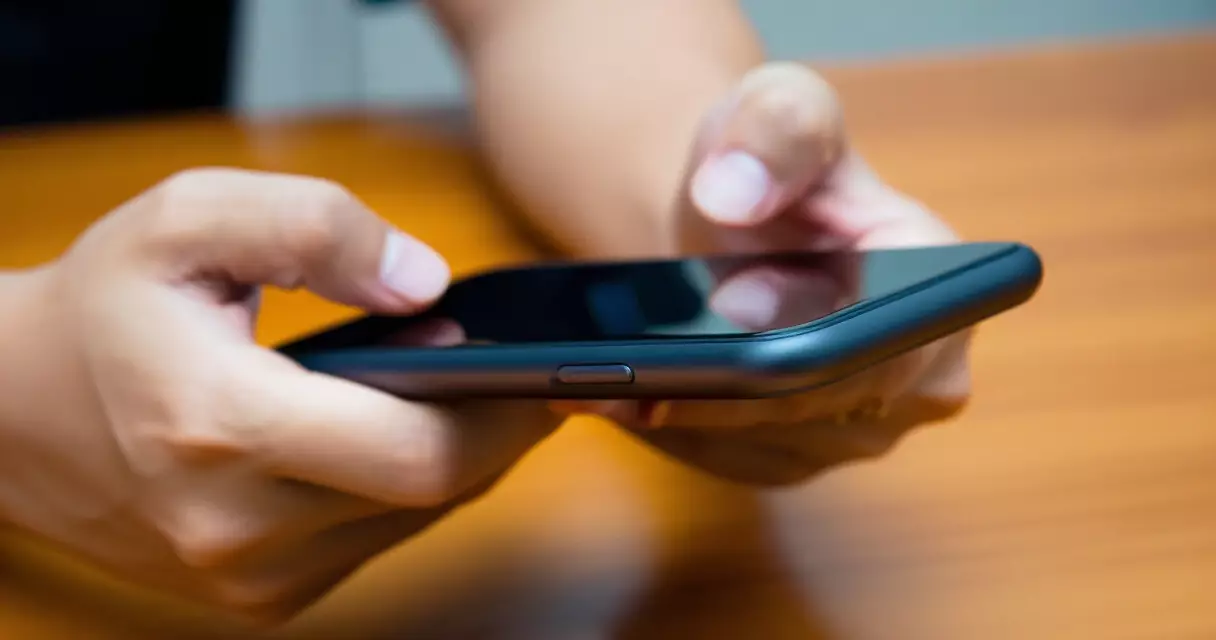
In thumb play, only two fingers are active: the left thumb for the movement joystick and the right thumb for aiming and firing. It’s simple but limited. You can’t aim and fire simultaneously while moving. In a claw setup, you use your index fingers for the fire and ADS buttons at the top of the screen, while your thumbs stay on movement and aiming. This is the preferred style of competitive players because it allows for more simultaneous actions.
For those who want to try mobile FPS at a competitive level, learning the claw setup is a major step. Once you get used to it, the improvement is greater than any sensitivity tweak. If you’re also interested in competitive mobile gaming in the Philippines, it can be helpful to read the guide about the biggest esports and local tournaments in the Philippines 2026.
Optimal Button Placement and Size in HUD
When customizing your HUD, remember three principles: accessibility, visibility, and comfort. The fire button should be large and easily reachable by your finger without moving away from the aim area. The ADS button should be close to the fire button for quick transitions. And the jump, slide, and crouch buttons should be positioned where they won’t be accidentally pressed while aiming.
Here is a recommended HUD layout table for a 4-finger claw setup:
| Button | Position | Size (% of screen) | Reason |
|---|---|---|---|
| Fire (Primary) | Upper right corner | Large (120–140%) | Index finger access, quick tap |
| ADS / Scope | Upper left corner | Medium (100–110%) | Left index, simultaneous with fire |
| Jump | Lower right, near aim area | Medium (90–100%) | Thumb access for jump shots |
| Slide / Crouch | Lower right, next to jump | Small-Medium (80–90%) | Quick slide cancel |
| Reload | Left, center | Small (70–80%) | Not time-critical, avoid accidental taps |
| Grenade / Utility | Left side | Small (60–70%) | Rarely used, keep away from main area |
Per-Scope Sensitivity Tuning for Accurate Aim at All Ranges
One of the most important aspects of how to optimize sensitivity and HUD settings in mobile FPS for more accurate aim is per-scope tuning. It’s not enough to use a single sensitivity for all magnification levels.
The principle is simple: as the zoom level increases, the sensitivity you need decreases. At 1x red dot, you need fast movement for close-range fights. At 6x scope, a small swipe moves the crosshair a very long distance, so you need very low sensitivity for precise long-range shots. According to the GameGeekFusion CODM Guide updated in 2025, the 6x Tactical Scope is typically set at 14–15 and the 8x Tactical Scope at 7–10 to avoid overshoot.
Understanding the relationship between zoom level and sensitivity is a fundamental skill that helps in all mobile FPS games, not just CODM. The same principle applies to PUBG Mobile, Apex Legends Mobile, and the upcoming VALORANT Mobile.
The Effect of Device and Screen on Sensitivity Optimization
Not all smartphones are equal when it comes to gaming performance. The screen’s refresh rate, touch sampling rate, and the physical size of the display all affect how sensitivity settings feel. A 60Hz screen will feel slower than a 90Hz or 120Hz screen even with the same sensitivity values, because you receive fewer visual feedback frames.
If you switch phones, don’t assume that your old sensitivity settings will work the same way. A larger screen means longer finger travel per swipe, so you may need to increase the sensitivity. A higher refresh rate may require a slight downward adjustment because the perceived movement is smoother. One of the top trends in the mobile gaming community in 2026, according to community guides, is the shift to devices with 120Hz or higher refresh rates for a competitive advantage.
When you switch devices, don’t just copy your old settings. Recalibrate your sensitivity first based on the new screen size and refresh rate.
For those planning to build a gaming setup, the guide on new mobile game trends 2026 in the Philippines can also be useful to learn which devices and games are trending.
Sensitivity Code and Preset Sharing Culture in Mobile FPS
One of the growing trends in the mobile FPS community in 2025–2026 is sensitivity code sharing. In PUBG Mobile, for example, there is a feature that allows players to export their entire sensitivity setup as a code string that other players can import. According to the BitTopup 4-Finger Claw Guide, the format is a numerical code that covers camera, ADS, and gyroscope sensitivity in a single string.
This is great as a starting point, but remember that someone else’s sensitivity code was optimized for their device, screen size, and playstyle. Use it as a baseline and adjust from there based on your own experience.
How to Fine-Tune Your Aim: Practice Drills and Training Mode
Having the right sensitivity and HUD is just the beginning. You also need to practice to make the new settings become muscle memory. Here are effective drills:
First, use the Training Mode or Practice Range of your game. In CODM, go to Practice vs AI and play a few rounds with the new settings. Focus on tracking, where you try to keep the crosshair on a moving target continuously. Then, practice flick shots: quickly aiming at a target that suddenly appears in your peripheral vision.
Second, try different weapons. A sensitivity that works great for an assault rifle might be too fast for a sniper, or too slow for an SMG. That’s why per-weapon testing is important. Invest time playing multiple rounds with different weapon classes before finalizing your settings.
If you’re also interested in joining competitions, read about why the meta changes in competitive mobile games to understand how meta shifts also affect optimal settings.
VALORANT Mobile and the New Era of Mobile FPS Sensitivity
On April 21, 2025, Riot Games officially announced VALORANT Mobile, which first rolled out in China. This is an important development for the mobile FPS landscape because it brings tactical shooter mechanics, where precise aim is more critical than in other FPS sub-genres, to the mobile platform.
VALORANT is known on PC as a game where headshot accuracy is the primary deciding factor in gunfights. In the mobile version, sensitivity optimization is expected to be even more crucial than in PUBG Mobile or CODM due to the tactical nature of the gameplay. Players who optimize their mobile FPS sensitivity and HUD early will have a significant advantage when VALORANT Mobile expands its availability in Southeast Asia, including the Philippines.
Frequently Asked Questions
What is a good baseline sensitivity for a mobile FPS beginner?
Based on published guides, the recommended starting point for CODM is Standard Sensitivity 80 and ADS Sensitivity 90. For PUBG Mobile, the baseline is higher: Third-person 120–140. Start here and adjust by 5–10 points up or down based on your comfort level.
Is it better to have the gyroscope always on or scope only?
According to the PUBG Mobile Help Center, two modes are available: “Always on” and “Activate the scope”. For beginners, scope-only mode is more recommended because it won’t affect normal camera panning. Once you’re comfortable, you can try always-on for more responsive overall aim.
Do I need to change my sensitivity when I switch phones?
Yes. Screen size, refresh rate (60Hz vs 120Hz), and touch sampling rate all affect how settings feel. A larger screen requires a slight increase in sensitivity, while a higher refresh rate may require a decrease.
How many fingers is best to use: 2, 3, or 4?
It depends on your comfort level. Two-finger (thumb) play is the most natural but limited in simultaneous actions. Three-finger is a good middle ground. Four-finger claw is the most versatile for competitive play because you can aim, fire, and move simultaneously.
How can I reduce aim overshoot?
Lower the sensitivity by 5–10 points and practice controlled swipes in Training Mode. Also use the gyroscope for micro-corrections instead of large swipe movements. Overshoot is often caused by sensitivity that’s too high or finger swipes that are too fast.
Should my sensitivity be the same for all scopes?
No. Each scope level needs its own sensitivity value. The pattern most guides follow: decreasing sensitivity as zoom increases. For example in CODM, Red Dot may be at 85–90 while the 6x Scope is at just 14–15 according to published presets.
Summary and Key Takeaways
Optimizing sensitivity and HUD settings in mobile FPS is not a one-time setup but an ongoing process of adjustment and practice. Here are the key points to remember:
Start with proven baseline values from published guides (Standard 70–90, ADS 80–110 for CODM; higher for PUBG Mobile). Enable the gyroscope and start with scope-only mode for recoil compensation. Customize the HUD for your grip style, and make sure the minimap and killfeed are not covered. Set per-scope sensitivity that decreases as zoom level increases. And most importantly, practice in Training Mode before bringing new settings to ranked games.
Remember that sensitivity optimization is personal. The values in this guide are starting points. The true “best settings” are the ones you’ve fine-tuned for your own hands, device, and playstyle through consistent practice.